Sage CRM is fundamentally a communications management system. It manages the exchanges staff have with other organizations in the context of customer service issues, jobs, or opportunities. Communications can easily be categorized, customized, and reported on.
Records can be entered directly from Sage CRM, MS Outlook, or your phone.
Table of Contents
Email Management
Sage CRM works in tandem with MS Outlook. The sub-sections below review the various ways we can get emails into and out of Sage CRM.
Sending Out emails from Sage
Automatic Emails Out
Outbound emails can automatically go out via escalation rules or workflow actions. For example, when a new lead is created, an email can be issued to the assigned person and the prospect simultaneously.
Emailing Individuals Directly
From within Sage CRM, you can send emails to individuals using pre-built templates or free text. Using Accelerator, you can leverage Sage CRM contacts and templates directly from within Outlook.
Emailing Groups of Contacts
Sage CRM makes it easy to segment contacts into meaningful groups. You can email these groups directly from CRM or pass them to Mailchimp via the native integration.
Filing Emails into Sage CRM
Filing emails into Sage CRM from Outlook
Using Accelerator, it is simple to file emails against specific People, Companies, Opportunities, or Jobs. You can overwrite subject lines and label attachments for easier retrieval later.
Advance Email Management
Pick up emails submitted to specific addresses automatically. For example, emails to support@ can automatically create a ticket/case in Sage CRM.
Tasks & Appointments
Within Sage CRM, tasks and appointments share a lot of similarities. For example,
- Both Tasks & Appointments share the same entry screen
- Both can be customized
- You can set on-screen or email reminders
- All communications, regardless of status live within the communications folder for the Company, Person, Opportunity, or Case they were connected to
Differences Between Tasks & Appointments
Tasks
- Tasks do not have a duration (start and end). They strictly have a due date.
- Tasks are for a single person.
- Pending tasks appear in the Task section of My CRM / Calendar
Appointments
- Appointments have a duration (start and end)
- Appointments can be for multiple people
- Appointments show up on the Calendar section of My CRM / Calendar
- When creating an appointment, you can check the availability of the users being scheduled for the appointment.
Syncing your Outlook Calendar
Clients can have staff synchronize their Calendars with Sage CRM using either Accelerator OR Sage CRM’s Exchange integration. At My CRM Manager, our preference is Accelerator.
Syncing Using Accelerator
When using Outlook’s calendaring feature, you can connect an appointment to the correct Sage CRM record.
The communication record will then also display within Sage CRM under the appropriate Person, Company (and Case or Opportunity).
IMPORTANT: With this option, appointments created directly in Sage CRM do not appear in one’s Outlook Calendar.
Syncing using the Exchange Integration
Sage CRM does offer an Exchange integration. Some installs use this but it is rare. With the Exchange integration, appointments created directly in either Sage CRM or Outlook will display in both systems.
A key limitation of the Exchange sync is that communications added into one’s Outlook Calendar do not recognize the Sage CRM company, person, or case (etc.) that the communication is referencing. This means that, while we can see staff’s activities, those activities do not appear within the communication history of the correct company, person, or case (etc.) record in Sage CRM.
Measuring Communications
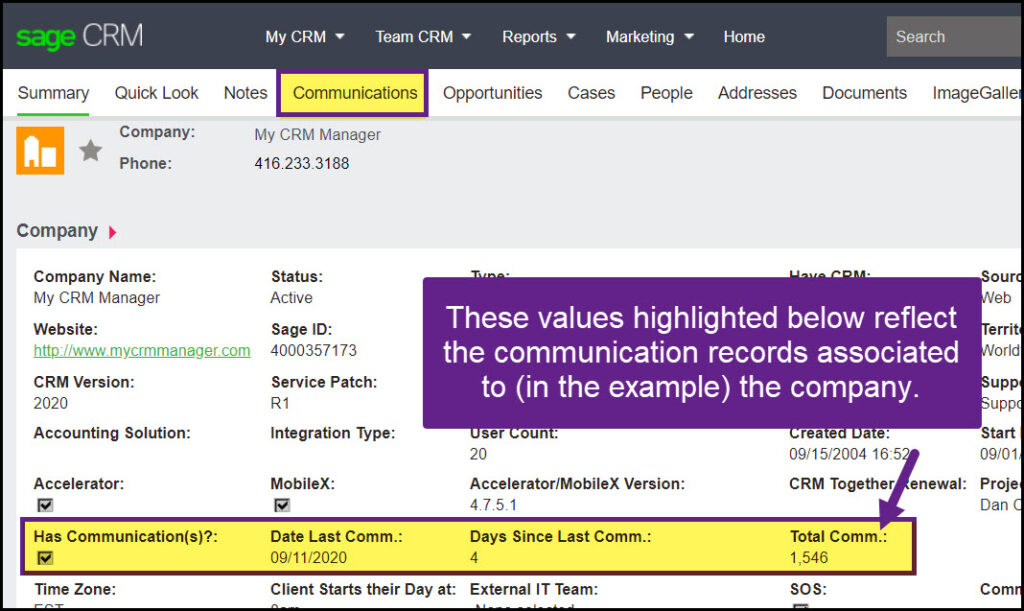
Often, clients use Sage CRM to measure how often (or not) they interact with their customers, prospects, and suppliers. This can be a very practical way to stay on top of accounts.
This image shows fields on the Company summary screen that reflects data from the communications tab.
A similar set of fields can display on the screens for individual Cases, Leads, and Opportunities.
Typically, we apply our communication statistics code in conjunction with the Adoption Dashboards as part of our Quick Start Implementation Package.