Connecting Sage 100 with Sage CRM provides customer-facing staff with the ability to view accounting data and create orders directly through the Sage CRM interface. The source positions this as a fully bi-directional solution with deep access to Sage 100 data from within CRM.
The information on this page refers to the GUMU™ integration, which is the Greytrix version of the Sage 100 to CRM integration.
- Sage CRM users do not require a Sage 100 license.
- Sage 100 does not need to be the latest version.
- The Sage 100 to Sage CRM version is described in the source as the deepest of the GUMU™ integration variants.
Table of Contents
- Latest updates to GUMU™ Sage 100 CRM
- Features, benefits, and user experience
- Customer integration
- Creating orders
- Linking a Sage 100 RMA to a Sage CRM case
- Vendor integration
- Inventory lookup
- Administration and security
- Common modifications
- Comparing the two versions of the integration
- About the publisher
- Frequently asked questions about GUMU™ Sage 100 CRM
Latest updates to GUMU™ Sage 100 CRM
May 2025 — Greytrix’s 5.6.0.4 release added major enhancements to Quick Line Entry screens, brought CRM quotes and order history onto company tabs, and improved the UI more broadly. The source notes that the release is free for existing subscribers.
You can view all of the release notes on this page or request a personalized walkthrough.
Features, benefits, and user experience
Features
- Customer and vendor integration.
- User access rights to Sage 100 data.
- Promotion of companies in Sage CRM to customers or vendors in Sage 100.
- Order and invoice history visibility from Sage CRM.
- Quote and order creation using Sage CRM quoting features that populate Sage 100.
- Order promotion from Sage CRM into Sage 100.
- Inventory lookup.
Benefits
- Sage CRM users are more informed about their accounts.
- Users can retrieve information without relying on accounting staff.
- The need for Sage 100 licensing is reduced.
- Duplicate entry is eliminated or reduced.
- Remote staff can participate in order entry.
This 5-minute overview video covers the user experience, including company metrics, ERP data visibility, quote and order creation, and inventory lookup.
- Key metrics on the company summary screen including reports
- View Customer ERP data including:
- Invoice History,
- Sales Order History,
- Sales Summary
- Item Sales History
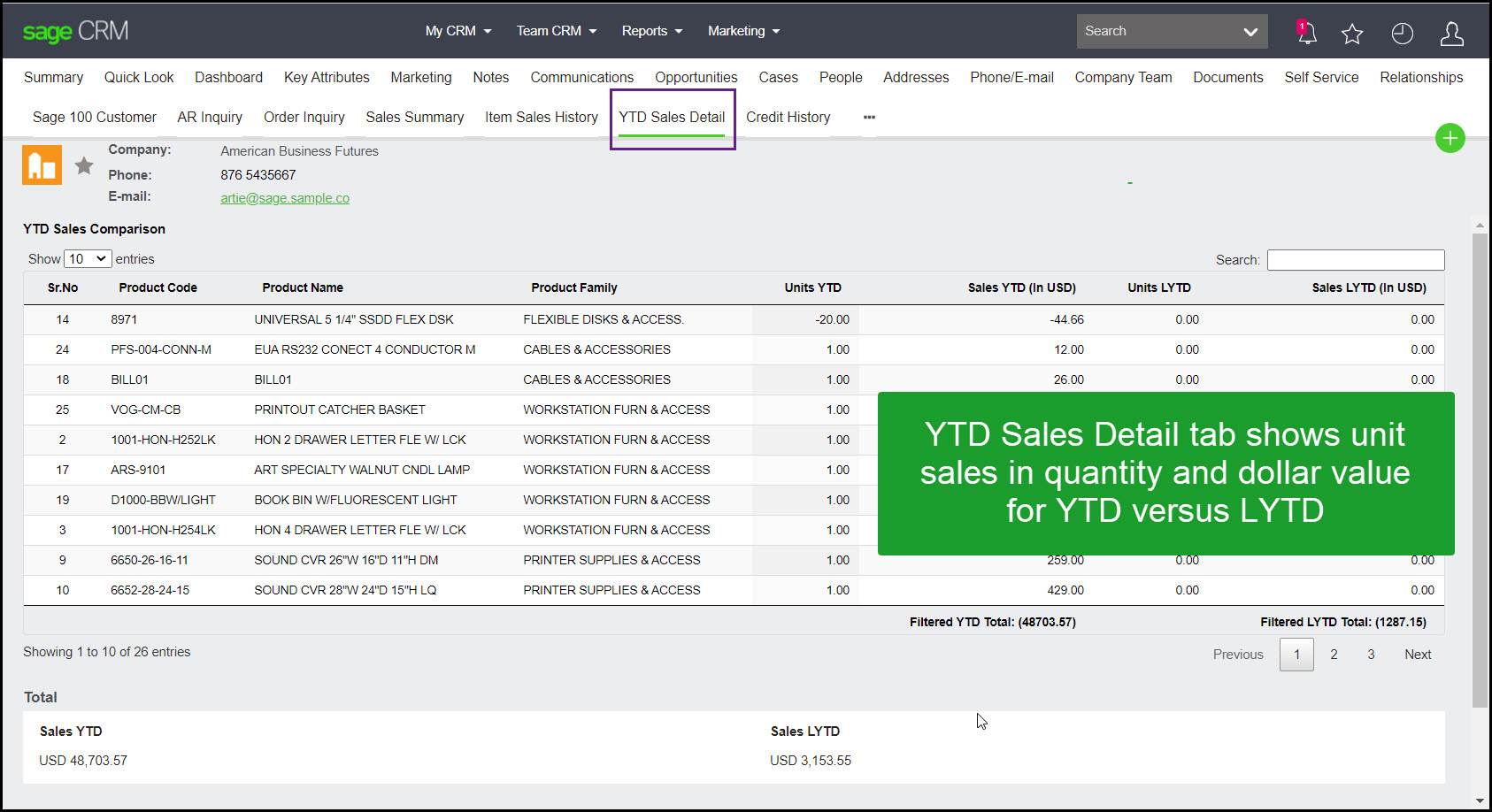
- YTD Sales Details
- Credit History
- Customer Information
- Creating Quotes and Orders that can, on approval, populate Sage 100
- Looking up Inventory
Customer integration
Users have deep visibility into customer records, buying patterns, and customer-related ERP history. The source page then walks through the major screens exposed from a company record.
Highlighted on this screen are all the points of integration visible from a Customer record in Sage CRM.
In the sub-sections below, you will see images of the various customer related screens that your users have access to (if they have rights to see these tabs).
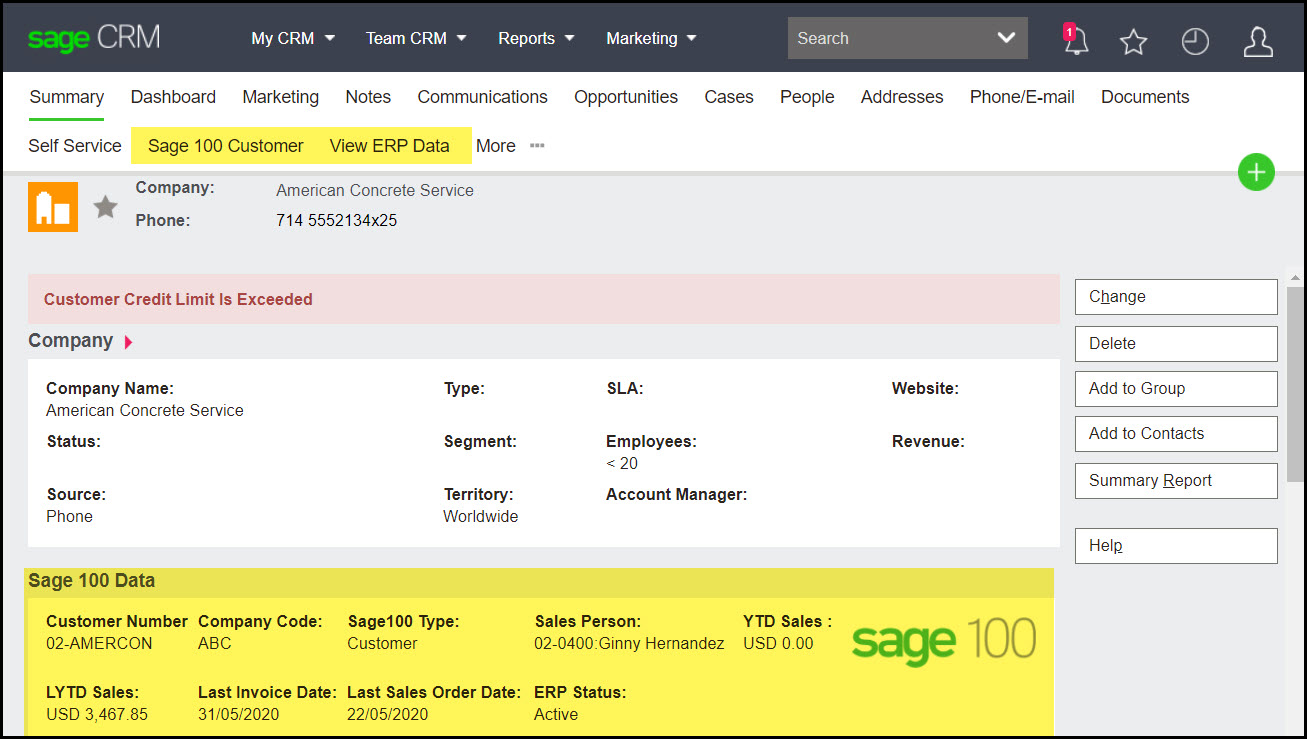
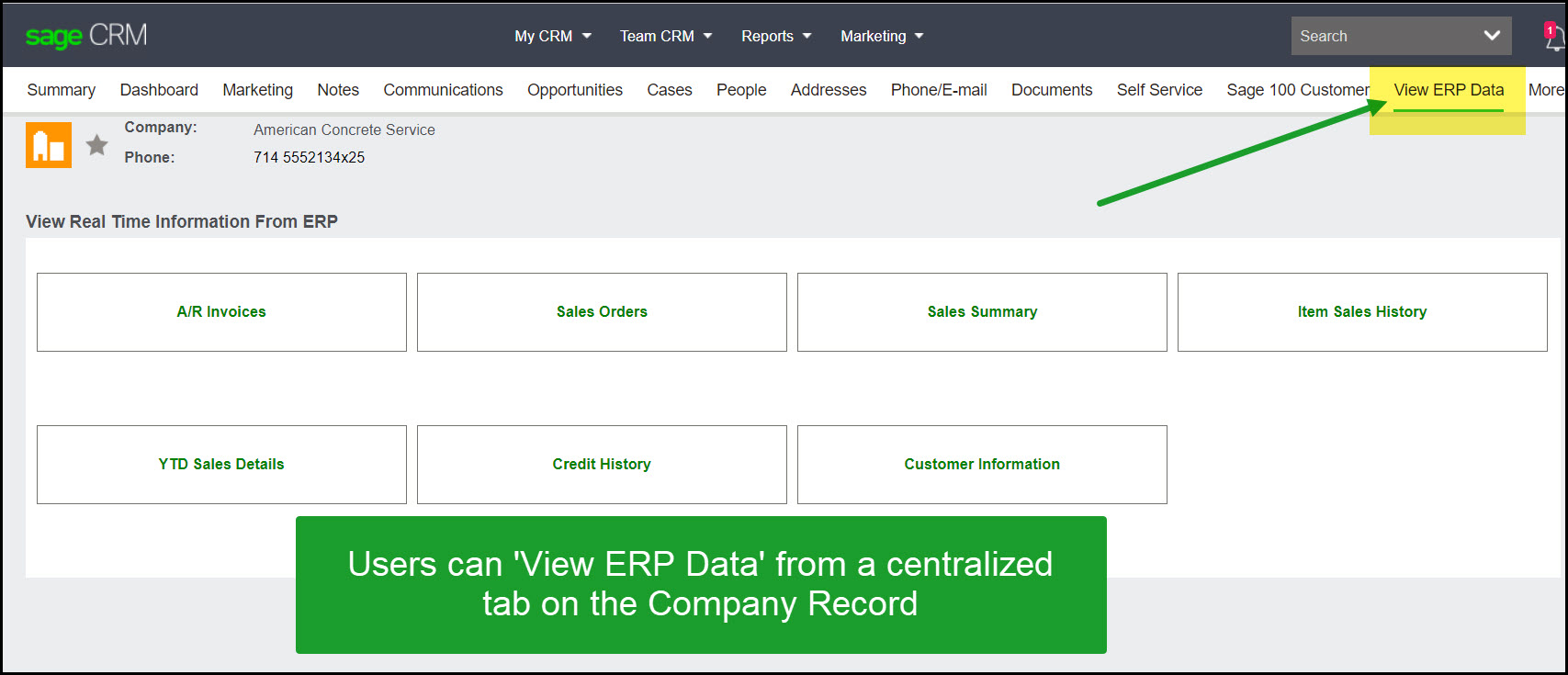
View ERP data
From a dedicated company tab, users can access invoice history, order history, buying patterns, credit history, and additional customer information from one centralized screen.
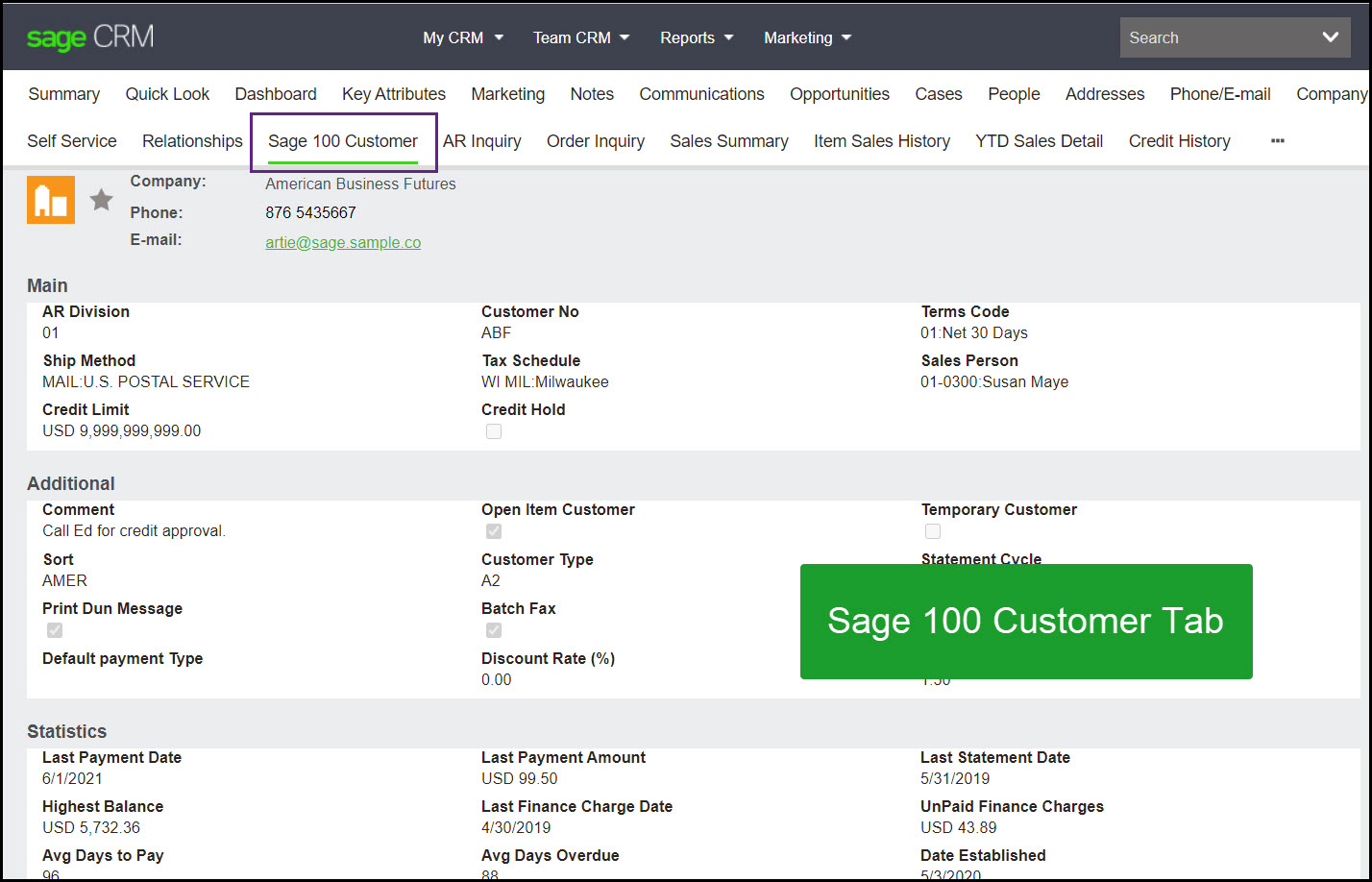
Sage 100 customer
From the Sage 100 Customer tab of a Company, Sage CRM users can view summary information about an account. Division, Salesperson, Last Payment date, etc.
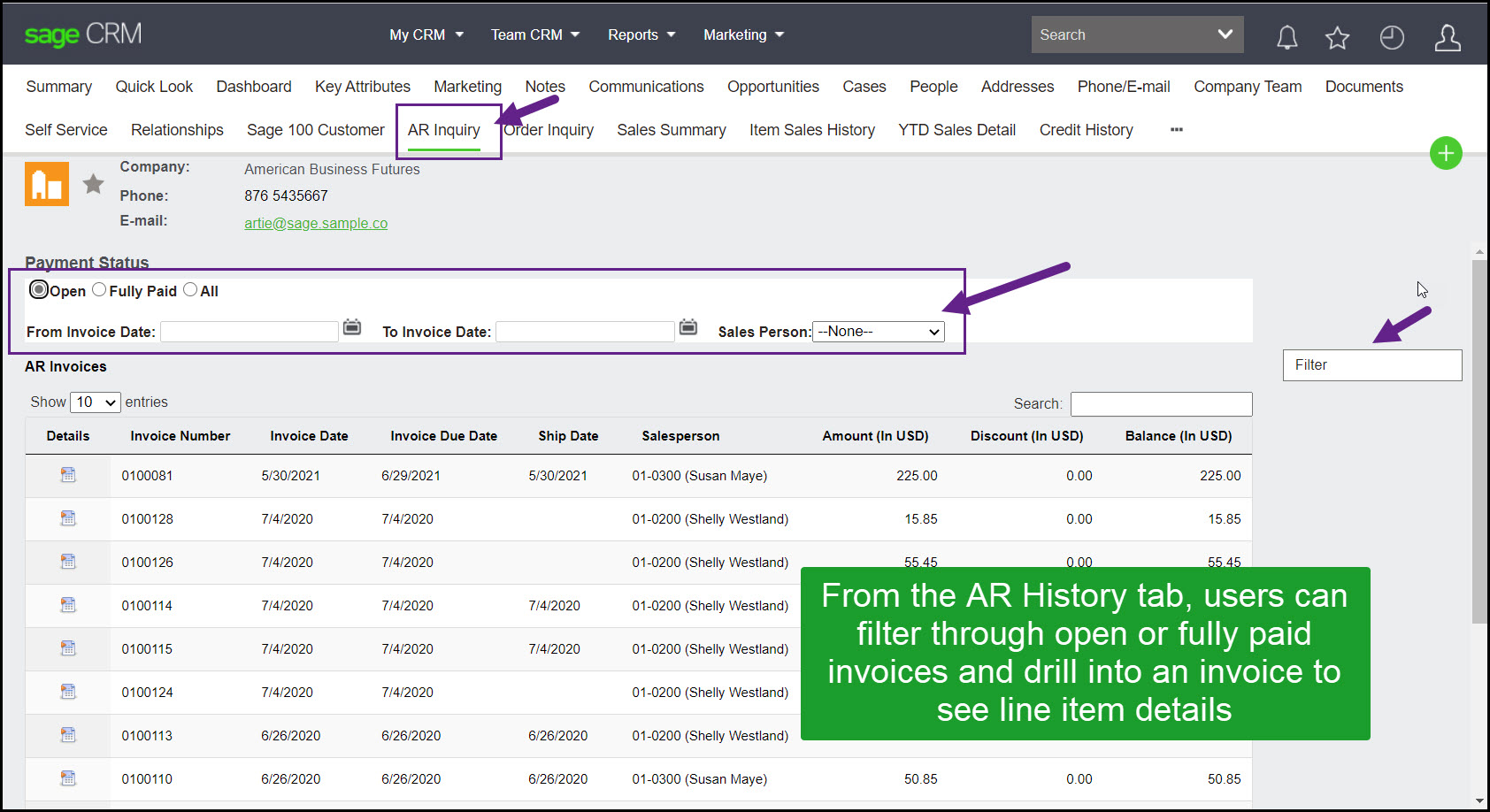
AR inquiry
From the AR History tab, users can filter through open or fully paid invoices and drill into an invoice to see line item details
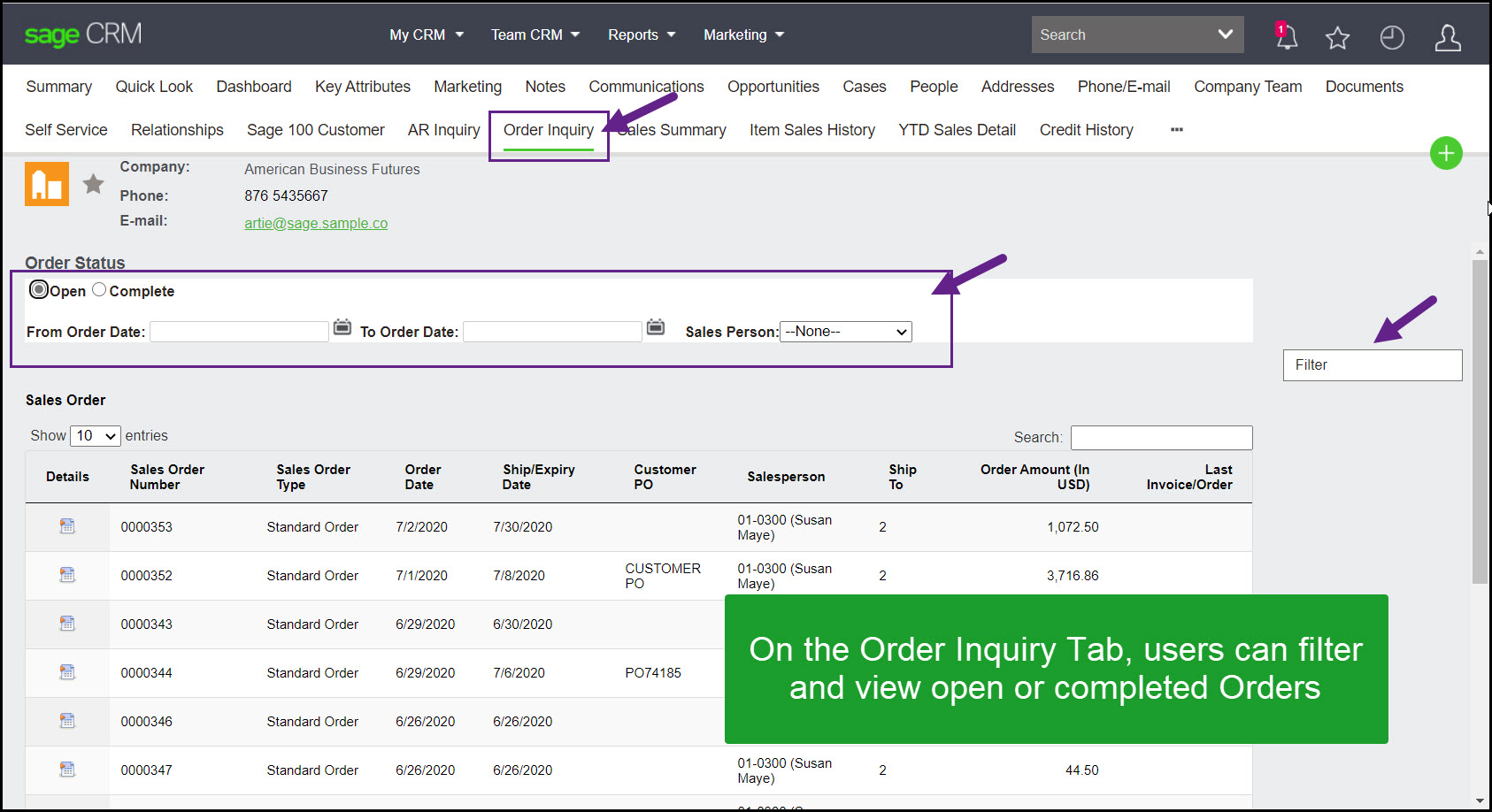
Order inquiry
On the Order Inquiry Tab, users can filter and view open or completed Orders.
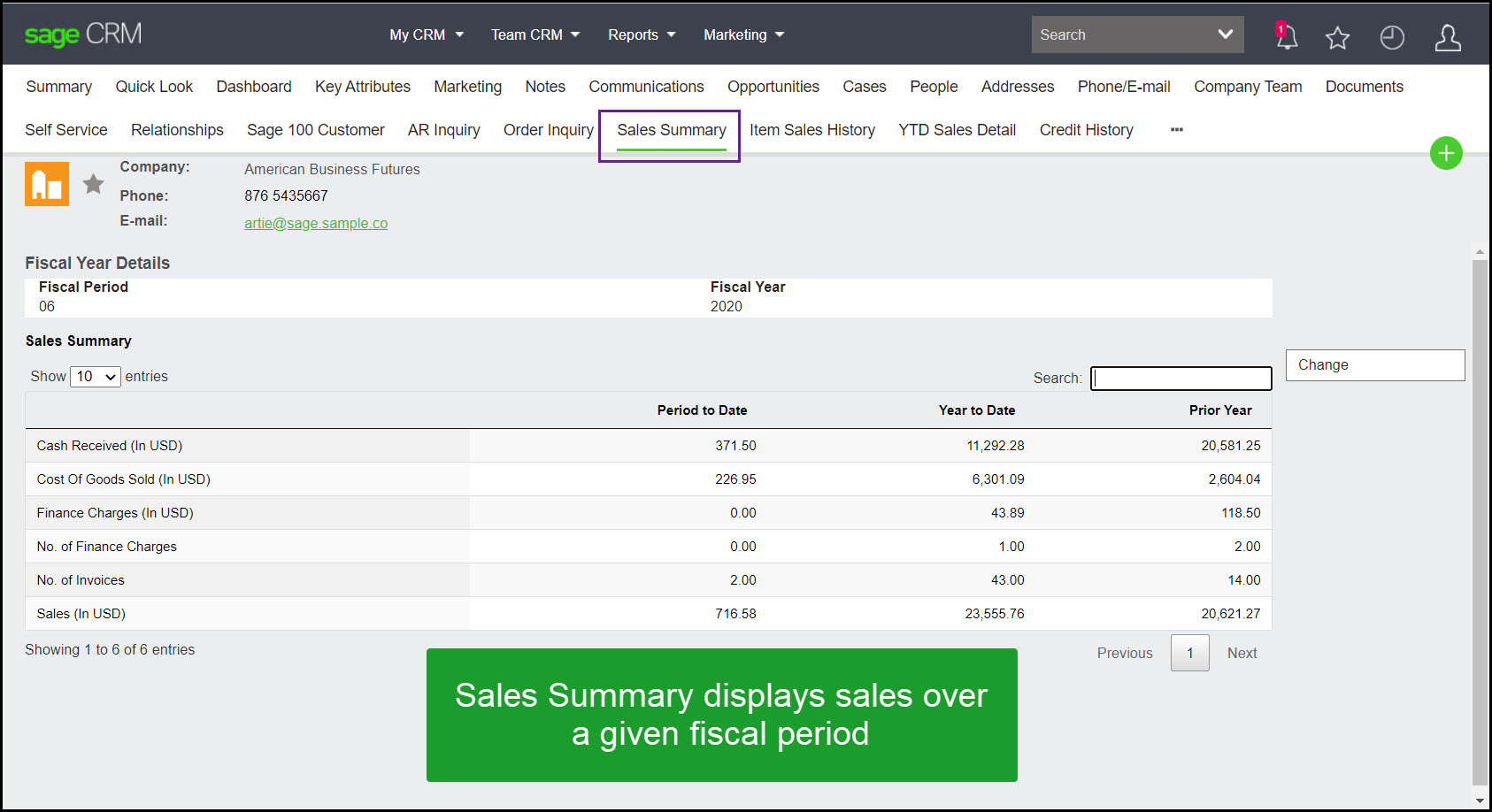
Sales summary
The Sales Summary tab allows the user to view the number of invoices and total sales relative Cost of Goods sold for a single fiscal period.
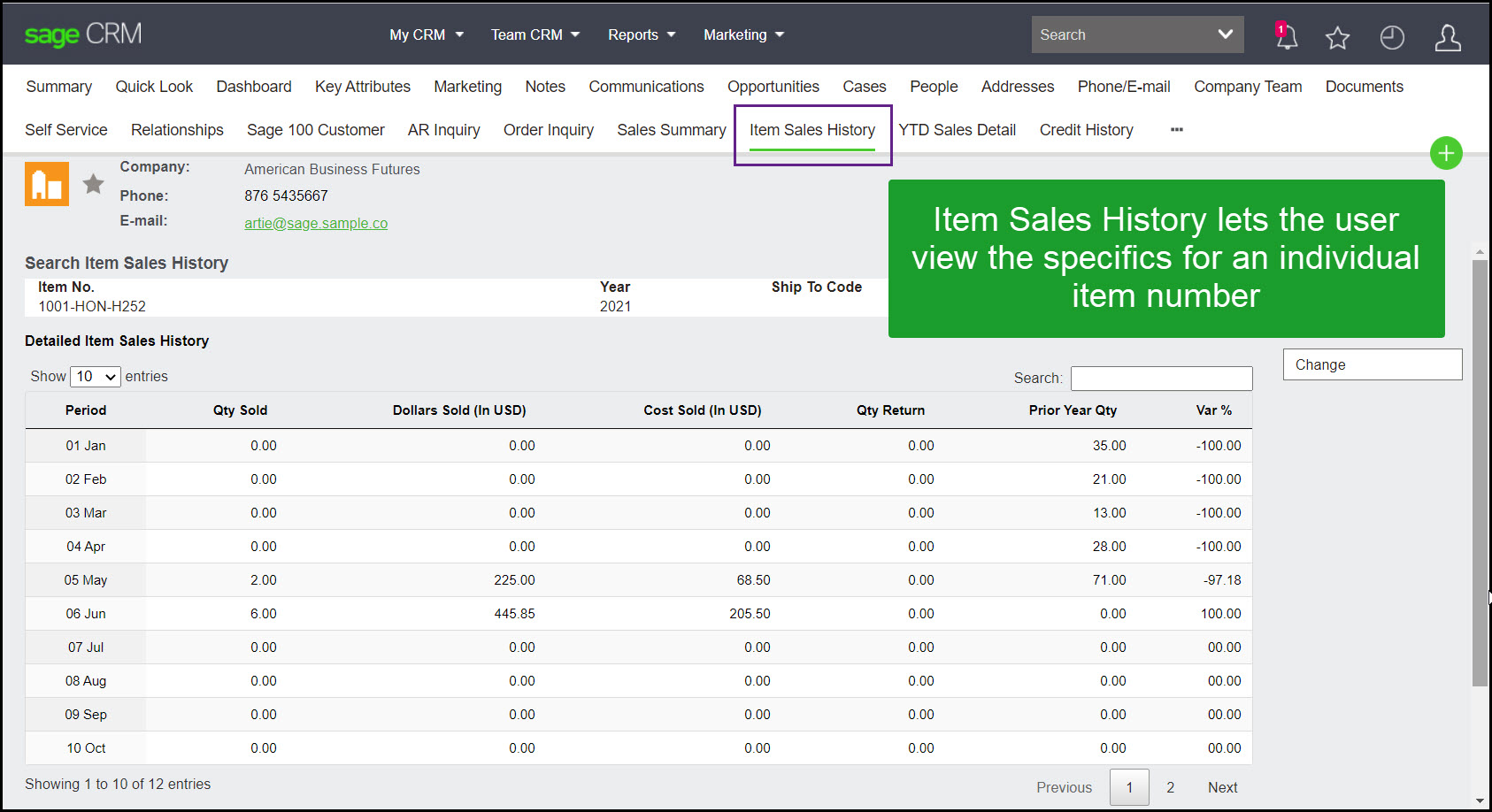
Item sales history
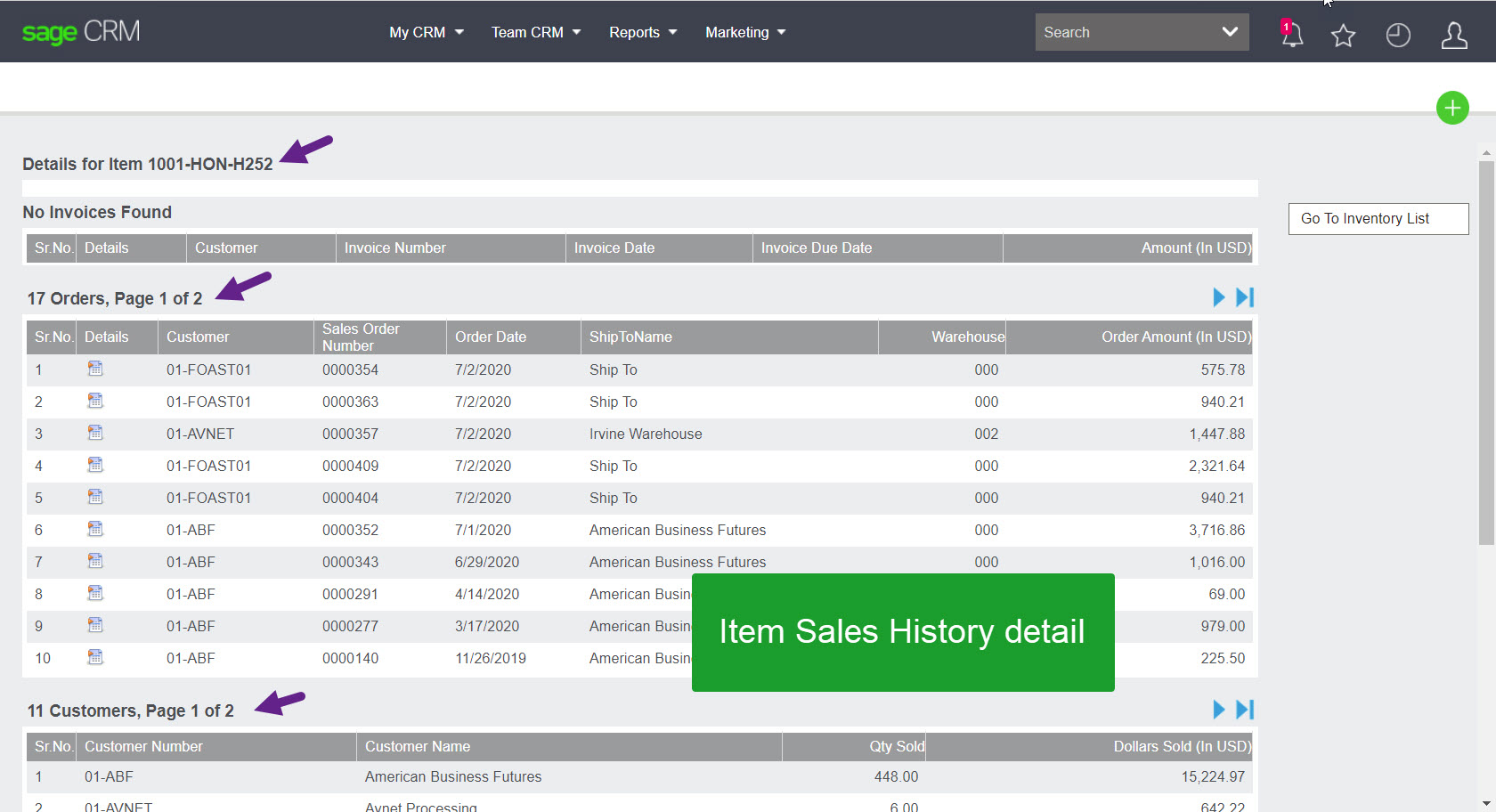
Item Sales History provides the CRM user with the ability to look up sales history for a particular sku.
The results break up quantity sold (units and dollar value) and cost of goods sold by period.
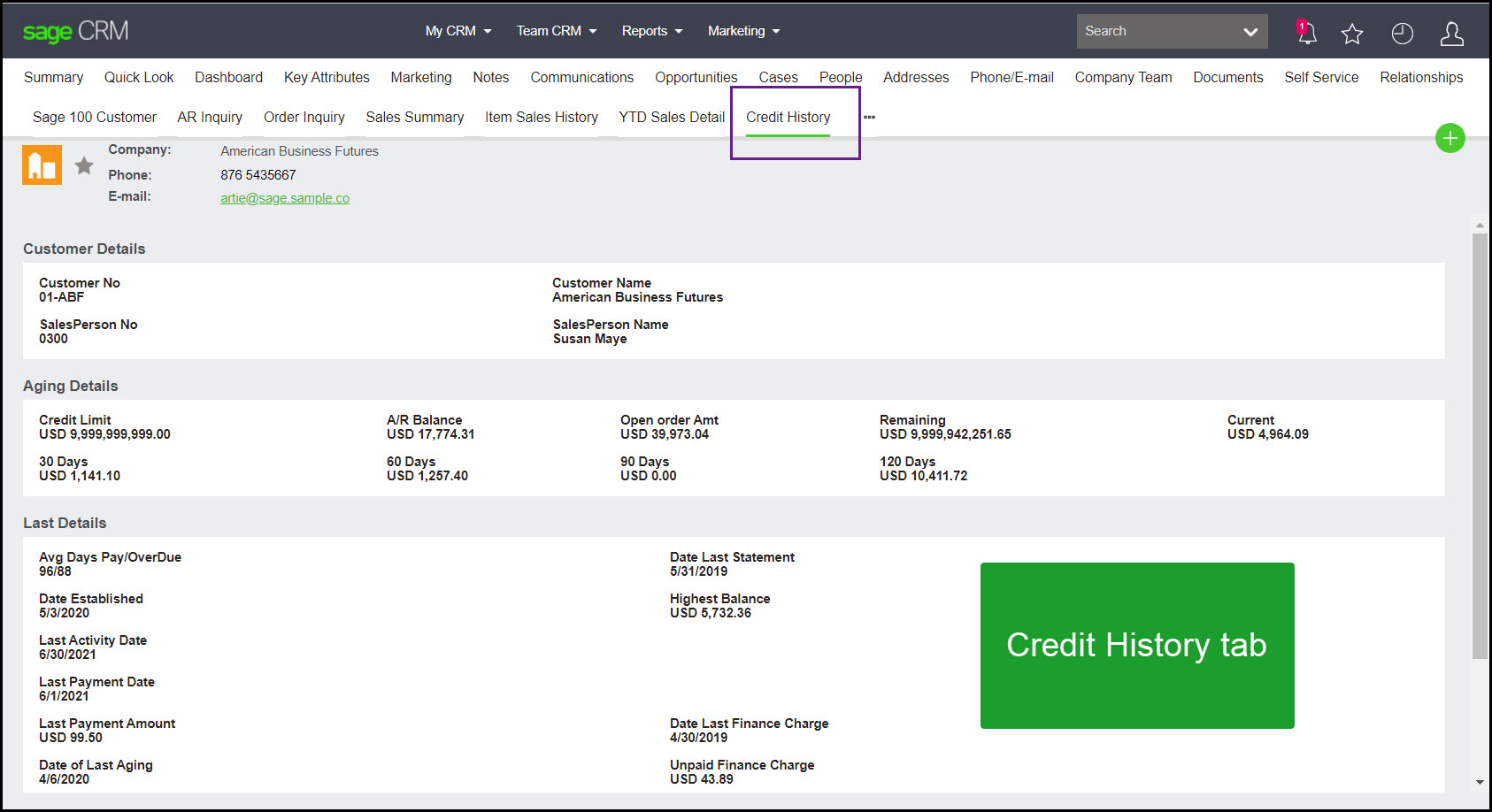
Credit history
Users do not need to ask accounting about the status of an account. Instead, they can jump to the credit history tab.
NOTE, if a company is on credit hold, a red information message will display at the top of the company summary screen.
YTD / LYTD sales summary
This screen highlights year-to-date versus last-year-to-date sales performance by units and value.
Creating orders
Users can create quotes and orders from an opportunity or directly from the company summary screen. Inventory and pricing from Sage 100 synchronize into Sage CRM so CRM quoting can populate Sage 100 sales orders on approval.
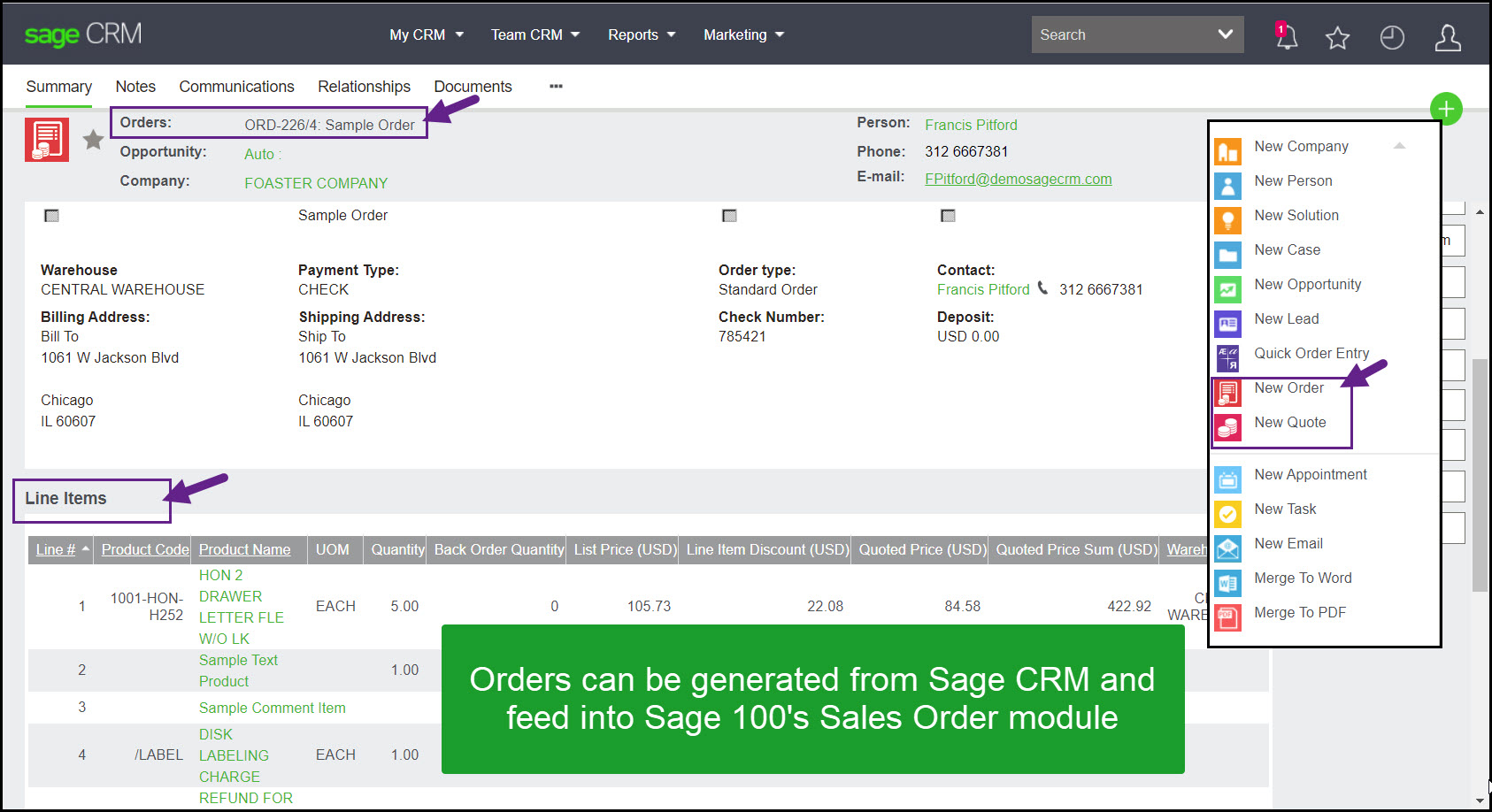
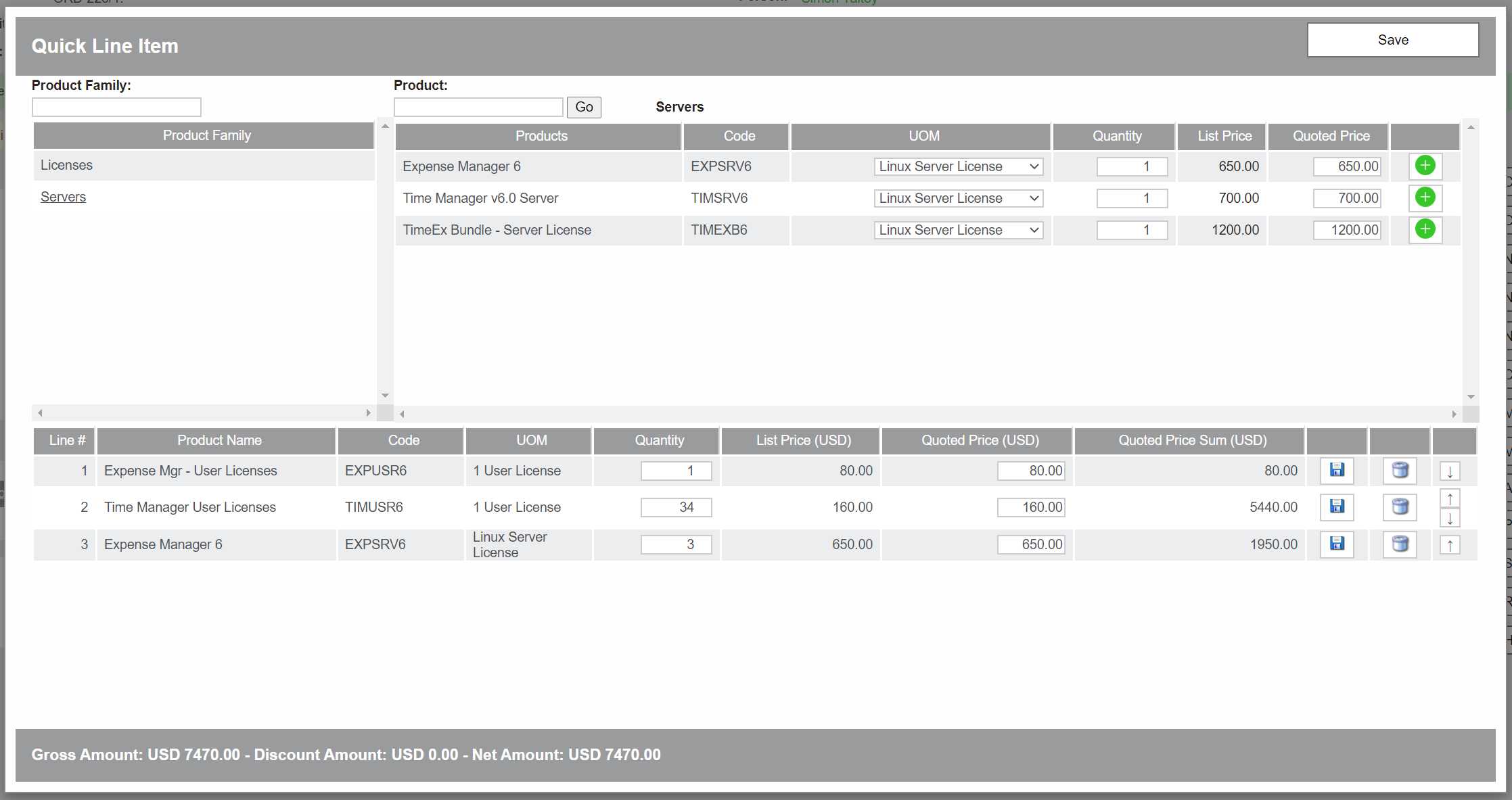
Items can be added one at a time or through Quick Line Entry.
Warning
The Quick Line Entry screen does not currently support Sage 100 inventory items of type Charge, Comment, or Lot/Serial. Those items must be added through the New Line Item screen.
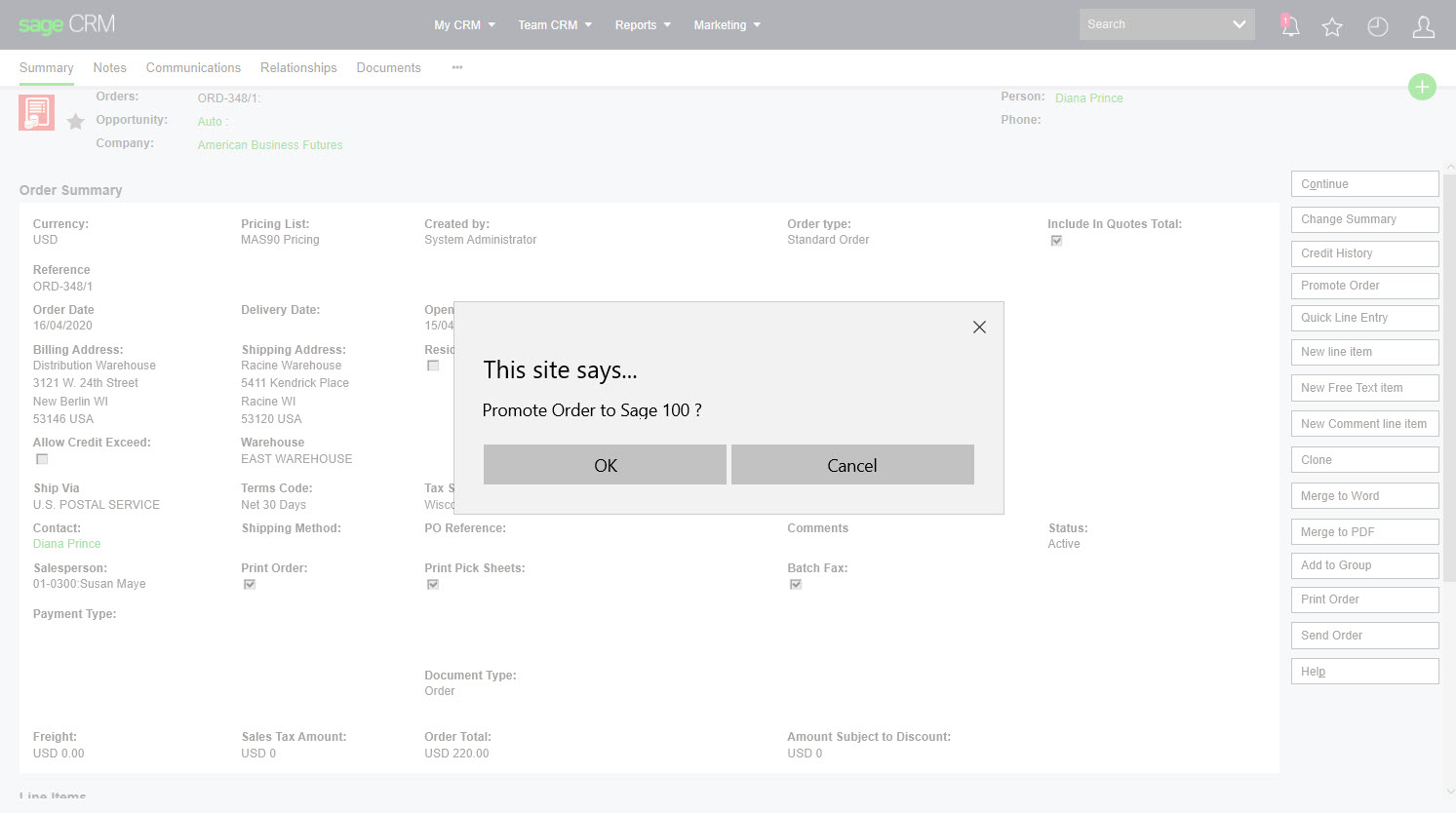
If users have the correct rights, they can promote a Sage CRM order to the Sage 100 sales order module, and the Sage 100 order reference writes back to Sage CRM. The source also notes that Sage CRM orders can be promoted directly to a Sage 100 invoice if required.
Linking a Sage 100 RMA to a Sage CRM case
Sage CRM cases can be used to manage customer service issues and related communications, and a Sage 100 RMA can be linked to a case.
Vendor integration
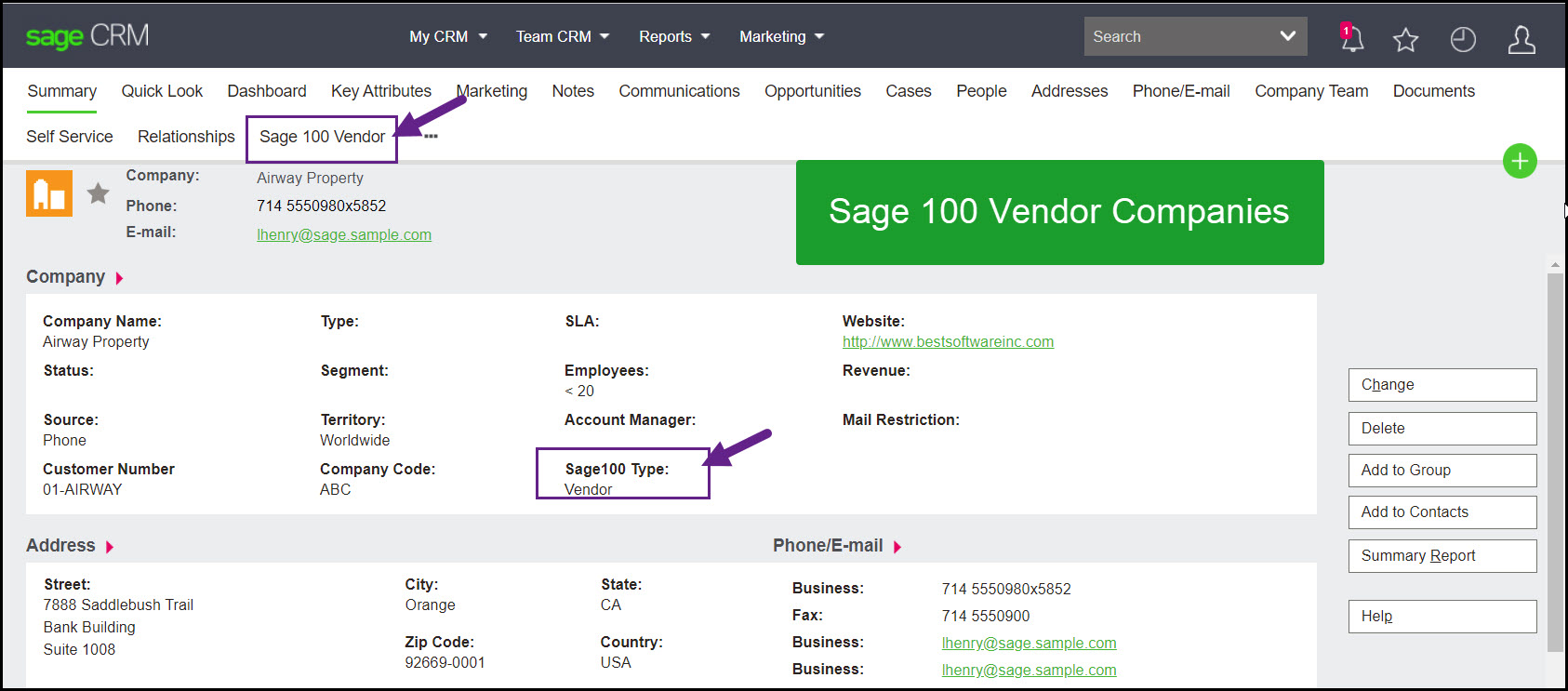
Existing vendor companies can be imported from Sage 100, and new vendor companies created in Sage CRM can be promoted into Sage 100 when users have the correct permissions.
Inventory lookup
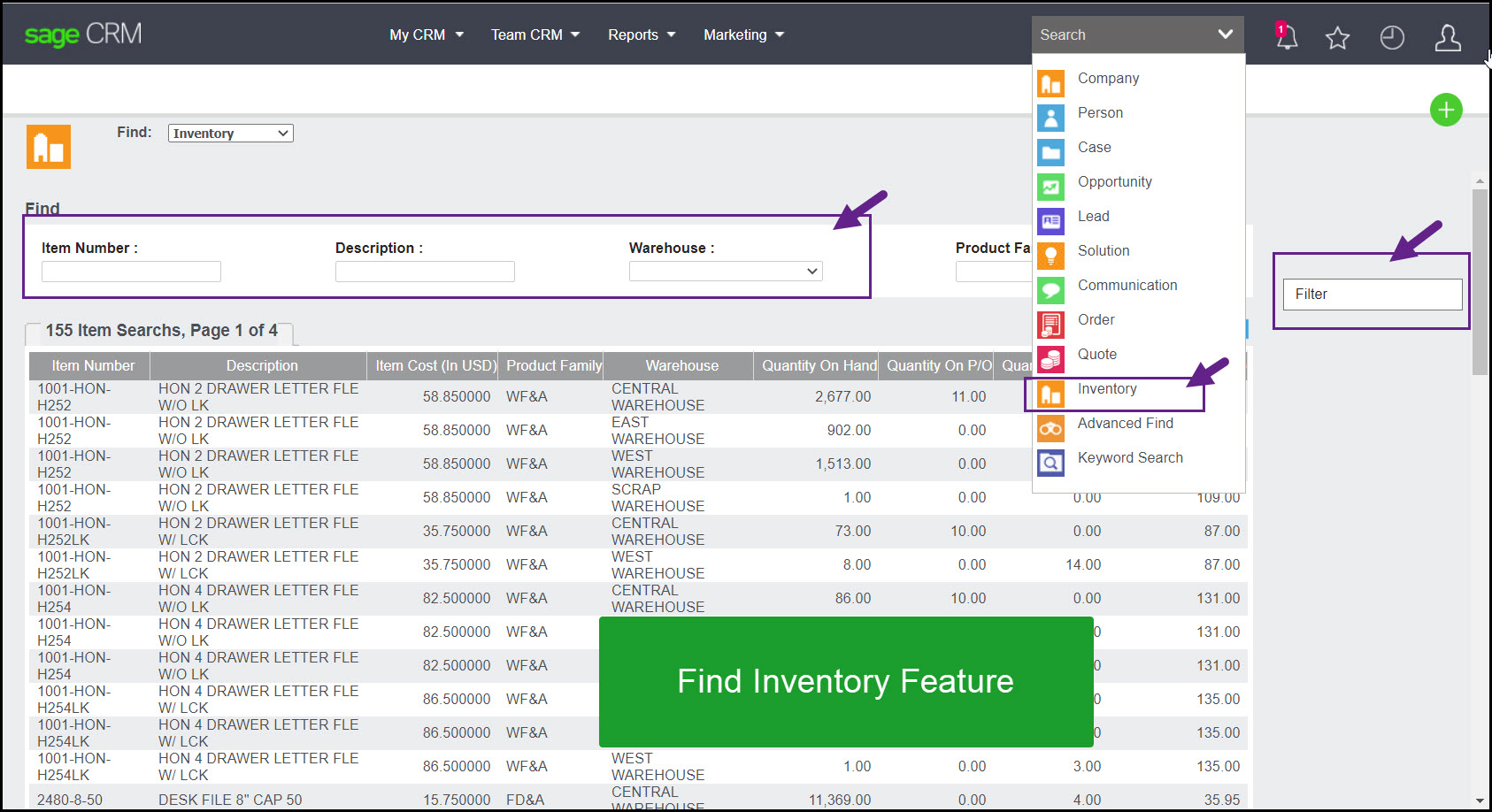
Just like how we Find Companies or People, this integration allows user to look up Inventory from the Sage CRM Finder menus
From the inventory finder screen, you can drill into an item and see Order History as well as a list of customers who have purchased the item.
Administration and security
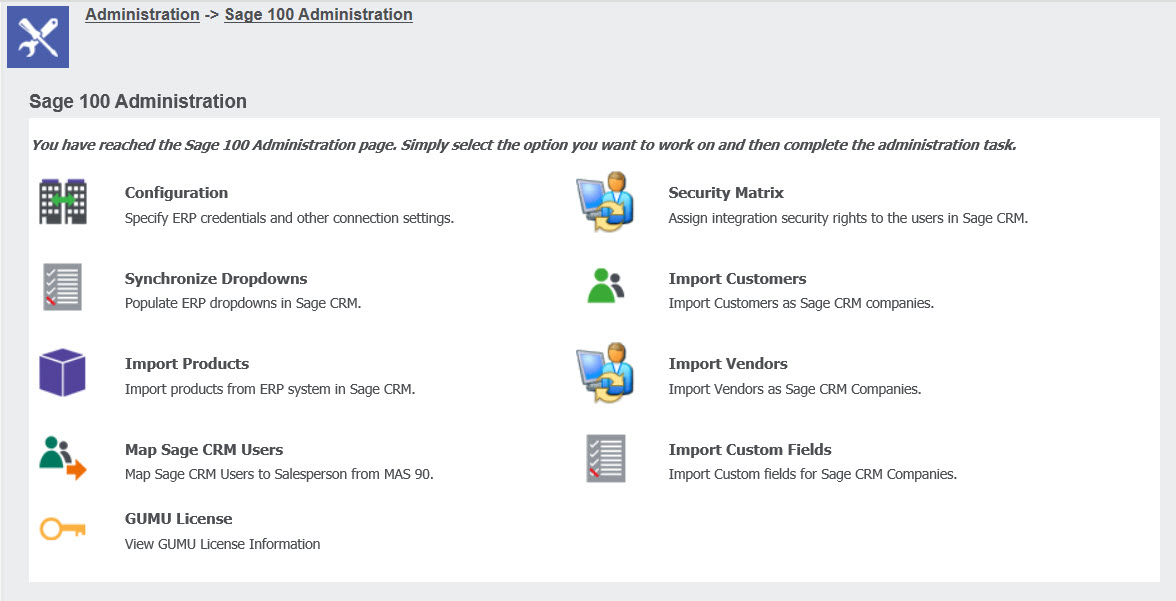
The administration section inside Sage CRM is used to configure the integration, import customers, vendors, and inventory, and map Sage CRM users to Sage 100 salesperson codes.
Security
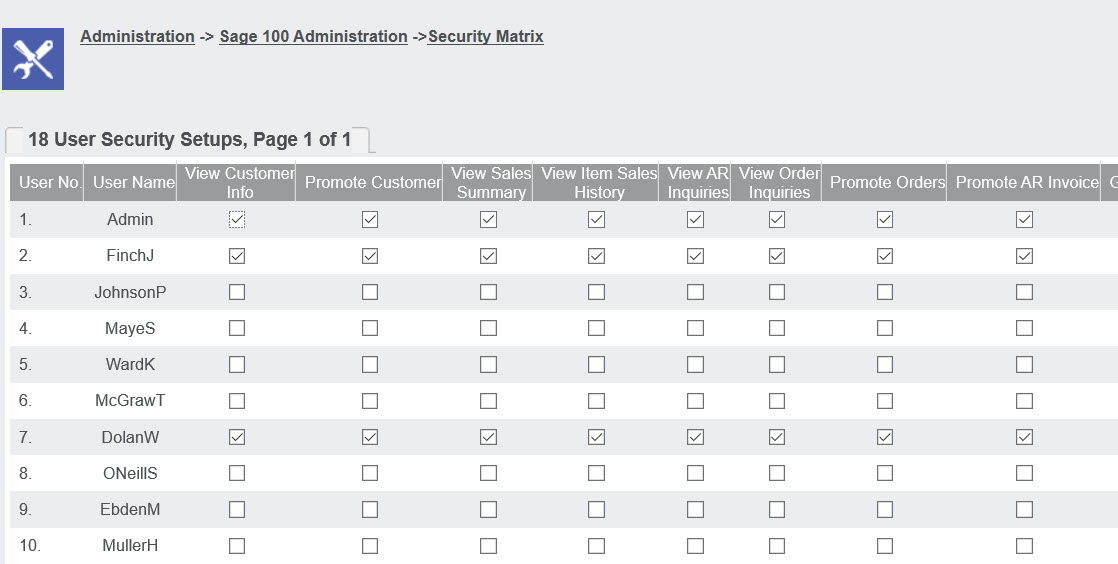
On top of all the general security principals within Sage CRM, the Sage 100 module has it’s own security screen used to define the rights you want individual users to have.
Common modifications
This integration can be modified to meet the unique requirements of your organization. More often than not, companies elect to make changes to the integration, some minor and some more significant. Below you will find a short list of common modifications.
Including key Sage 100 statistics to the Outlook interface
Adding User Defined Field from Sage 100
Yes, absolutely we can modify your integration to include any user defined fields you may have created in Sage 100.
1 to Many: Mapping a Single CRM Company to Multiple Customer Records
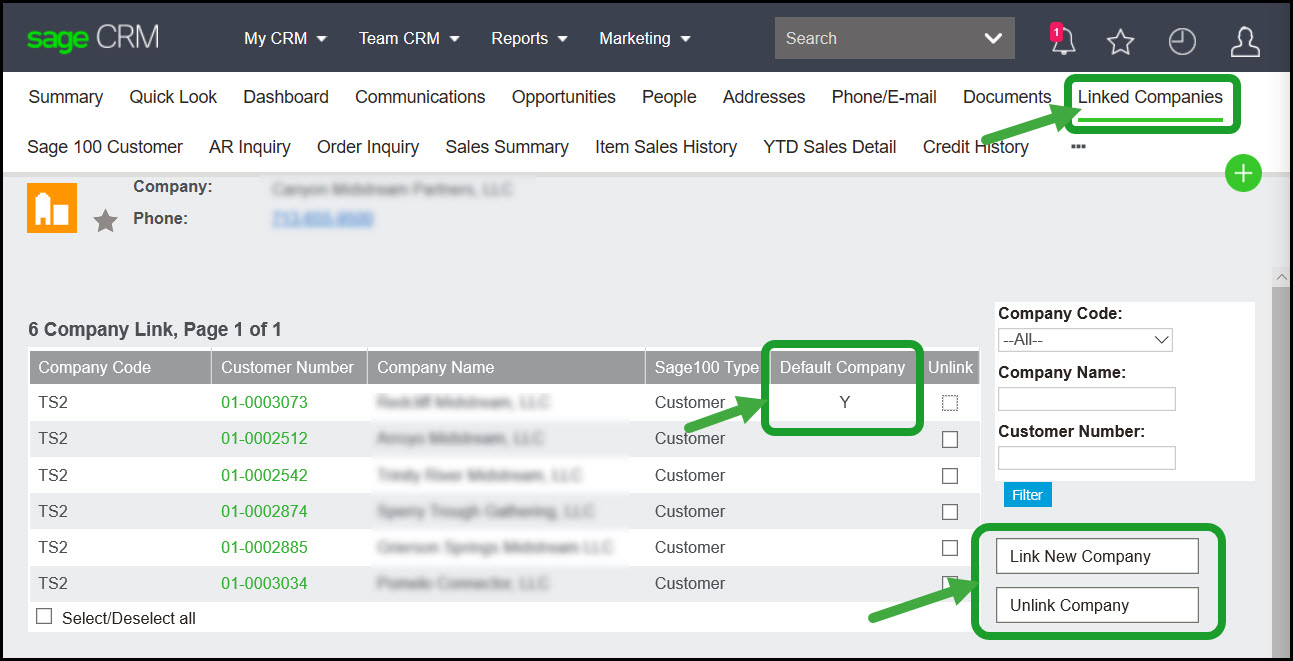
By default, integrations between CRM and 100 allow for only a single relationship. Example: 1 CRM company pointed to 1 Customer record. However, some organizations have multiple accounting databases with the same companies appearing in more than one database. For these situations, we use an extension to the integration that allows for a single company record in CRM to be connected to multiple accounting databases (Customers or Vendors). We refer to this requirement as 1 to Many.
From the Linked Companies tab, we can establish the connection between the single Sage CRM company and multiple Sage 100 records, as well as define the default relationship.
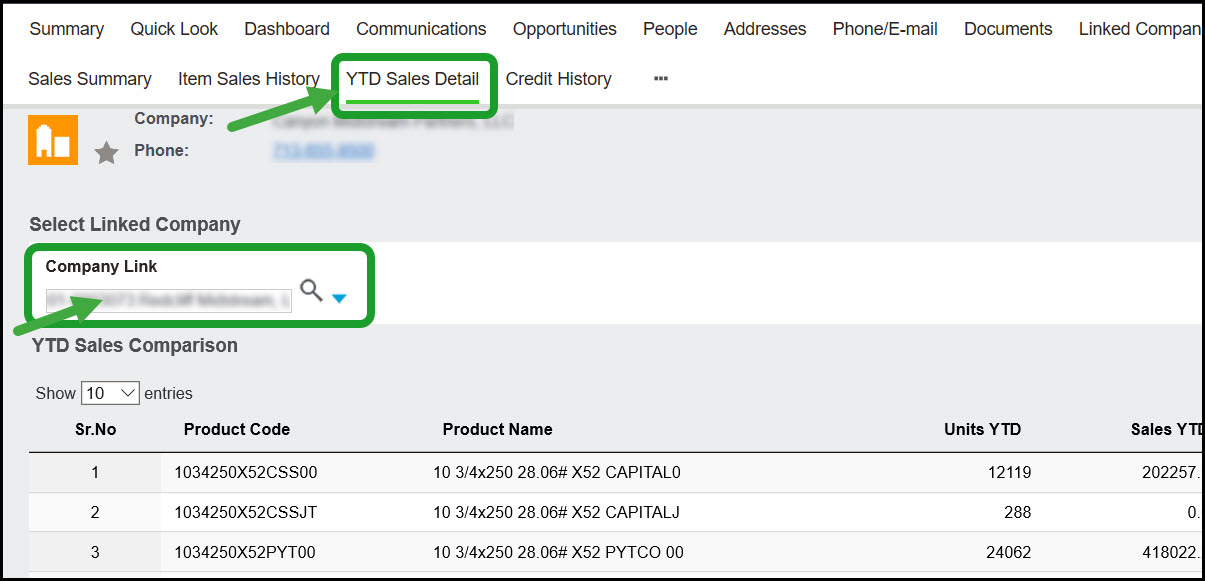
When we move through the integrated screens, the user has the option to filter records by Linked Companies
Using Serialized Inventory at the Order Level
If your organization needs to assign a serial number to an item at the Quote level (as opposed to the invoice level), we can now accommodate this requirement. Even on the Quick Line Entry screens.
If your company uses Serialized Inventory and applies the serial number at the Quote level, you may require an add-on component to make this work. Please contact us for details.
Comparing the two versions of the integration
Please note, that there exist 2 very different options for setting up the integration, the first option is published by Sage and the second option (aka GUMU™) is published by a development partner called Greytrix.
Here at My CRM Manager, we strongly endorse the version of the integration published by Greytrix. It is far more robust, faster, more flexible, and easier to support. The information we are providing on this page refers to the Greytrix version of the Sage 100 to CRM integration.
A comparison video is also provided that begins with the Sage version and then covers the Greytrix version at a high level.
This 3-minute video starts with the Sage (free) version of the integration and then covers the Greytrix version (above) at a very high level.
In the Sage version of the integration, you are essentially just launching Sage 100 screens from CRM. This has significant limitations for many companies that do not want users in Sage 100. Other significant limitations of the Sage version include:
- The Sage version requires Sage 100 to be installed on the user’s workstation
- The Sage version only works inside the LAN
- The Sage version only works with a single Sage 100 database
- The Sage version only works with very specific versions of Sage 100
- The Sage version has a very limited feature set
About the publisher
The Sage 100 to Sage CRM integration is published by Greytrix. Greytrix has been a Sage CRM development partner for over 20 years and is well known within the global Sage community.
Beyond Sage 100, Greytrix also publishes integrations between Sage CRM and Sage 500, Sage X3, and Sage Intacct, along with the leading integration between Sage 100 and Salesforce.
